How to Control a Linux PC or Steam Deck From Your Phone
Whether you're running Ubuntu on a desktop, managing a headless Raspberry Pi home server, or using a Valve Steam Deck in desktop mode, PCDeck turns your phone into an offline wireless trackpad, keyboard, and screen viewer.
Updated 22 September 2026 · Ubuntu 24.04, Debian, Fedora, Arch Linux, SteamOS & Raspberry Pi · X11 & Wayland
Yes. You can control any Linux PC or Valve Steam Deck from an Android phone or mobile web browser over local Wi-Fi. PCDeck runs on Linux via a single terminal install command, binding an input and streaming server on port 8000. It translates mobile touch gestures into native Linux pointer and keyboard events (via X11 / Wayland input subsystems) and streams audio and screen frames with zero cloud configuration.
Universal 1-Line Linux Install
Run this command in any Linux terminal to install and start PCDeck:
curl -sSL https://pcdeck.vercel.app/install.sh | bash
Inspect the script or read full technical documentation: Linux Installation & Security Docs →
Reading on your phone? Run PCDeck on your Linux PC.
Email the 1-line curl command to yourself, or copy it to run in your PC terminal.
Supported Linux distributions and platforms
PCDeck is engineered to run seamlessly across major Linux distributions:
- Ubuntu & Debian: Full support for Ubuntu 20.04+, Debian 11+, Linux Mint, Pop!_OS, and Elementary OS.
- Arch Linux & Manjaro: Native compatibility with rolling-release Arch environments.
- Fedora & RHEL: Automatic package resolution on RPM-based distributions.
- SteamOS (Valve Steam Deck): Perfect for controlling Steam Deck in Desktop Mode without docking a physical keyboard and mouse.
- Raspberry Pi OS: Lightweight resource footprint ideal for Raspberry Pi 4/5 home servers and media boxes.
Desktop Mode Terminal
Power → Switch to Desktop → Konsole:
curl -sSL https://pcdeck.vercel.app/install.sh | bash
APT & Firewall
Allow local LAN port 8000:
sudo ufw allow 8000/tcp
firewalld Configuration
Open firewall port 8000 permanently:
sudo firewall-cmd --add-port=8000/tcp --permanent && sudo firewall-cmd --reload
Pacman / Dependencies
Native Python 3 environment:
sudo pacman -S python python-pip && curl -sSL https://pcdeck.vercel.app/install.sh | bash
Step-by-step setup on Linux
-
Run the installer command in terminal
Open your Linux terminal (or switch to Desktop Mode on Steam Deck and open Konsole) and run:
curl -sSL https://pcdeck.vercel.app/install.sh | bashThe installer verifies Python 3, sets up the local user environment, and starts the PCDeck server.
-
Pair your phone via QR code or local IP
The terminal displays a clean ASCII QR code and your Linux machine's local IP address (e.g.
192.168.1.100:8000). Scan the QR code with your phone camera or enter the URL into your browser.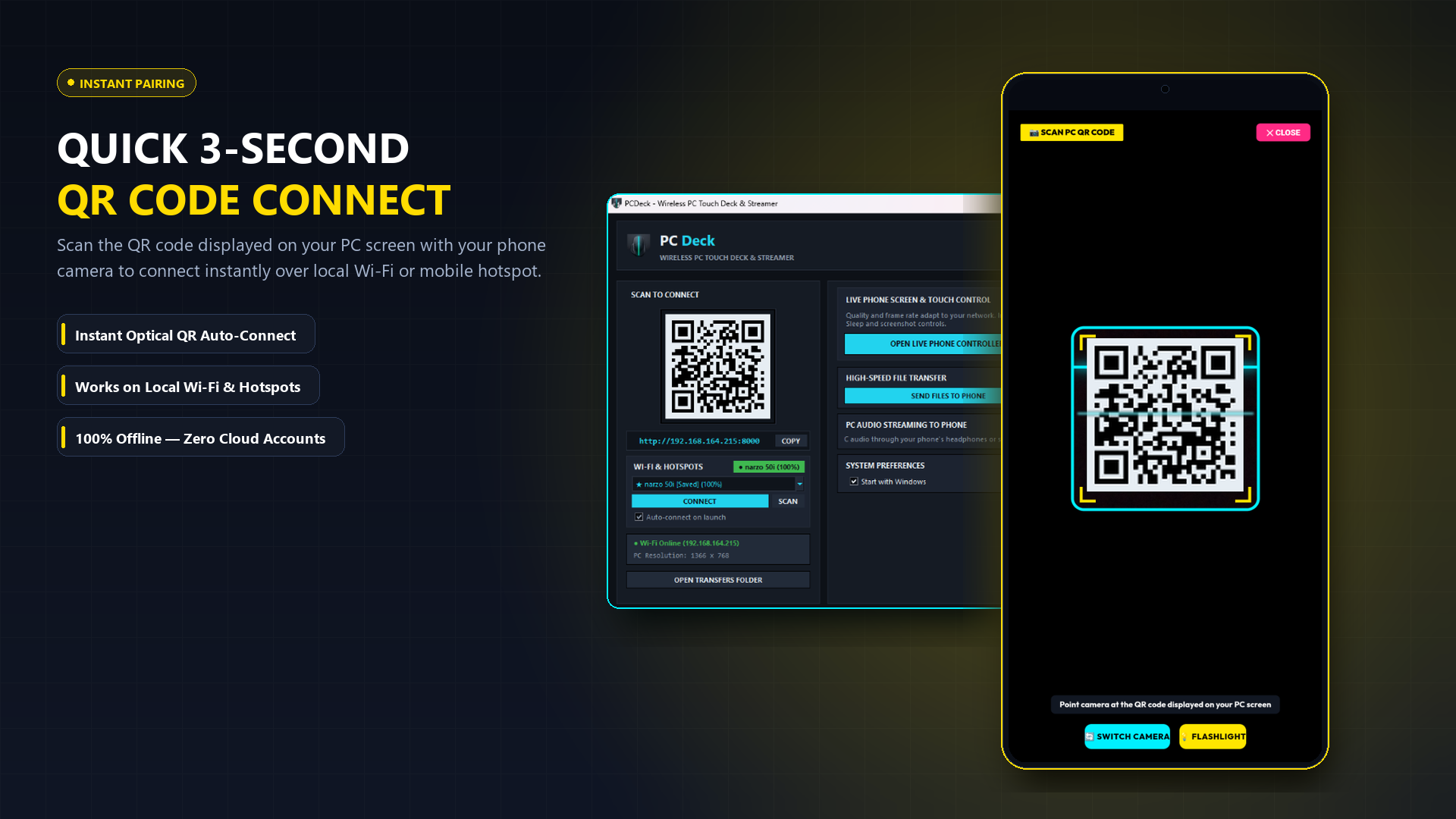
Figure 1: Scan the on-screen QR code or open http://[linux-ip]:8000 on your phone. -
Navigate and control Linux
Your phone screen becomes an active multi-touch trackpad and keyboard. Move your finger to steer the mouse pointer in GNOME, KDE Plasma, XFCE, or i3.
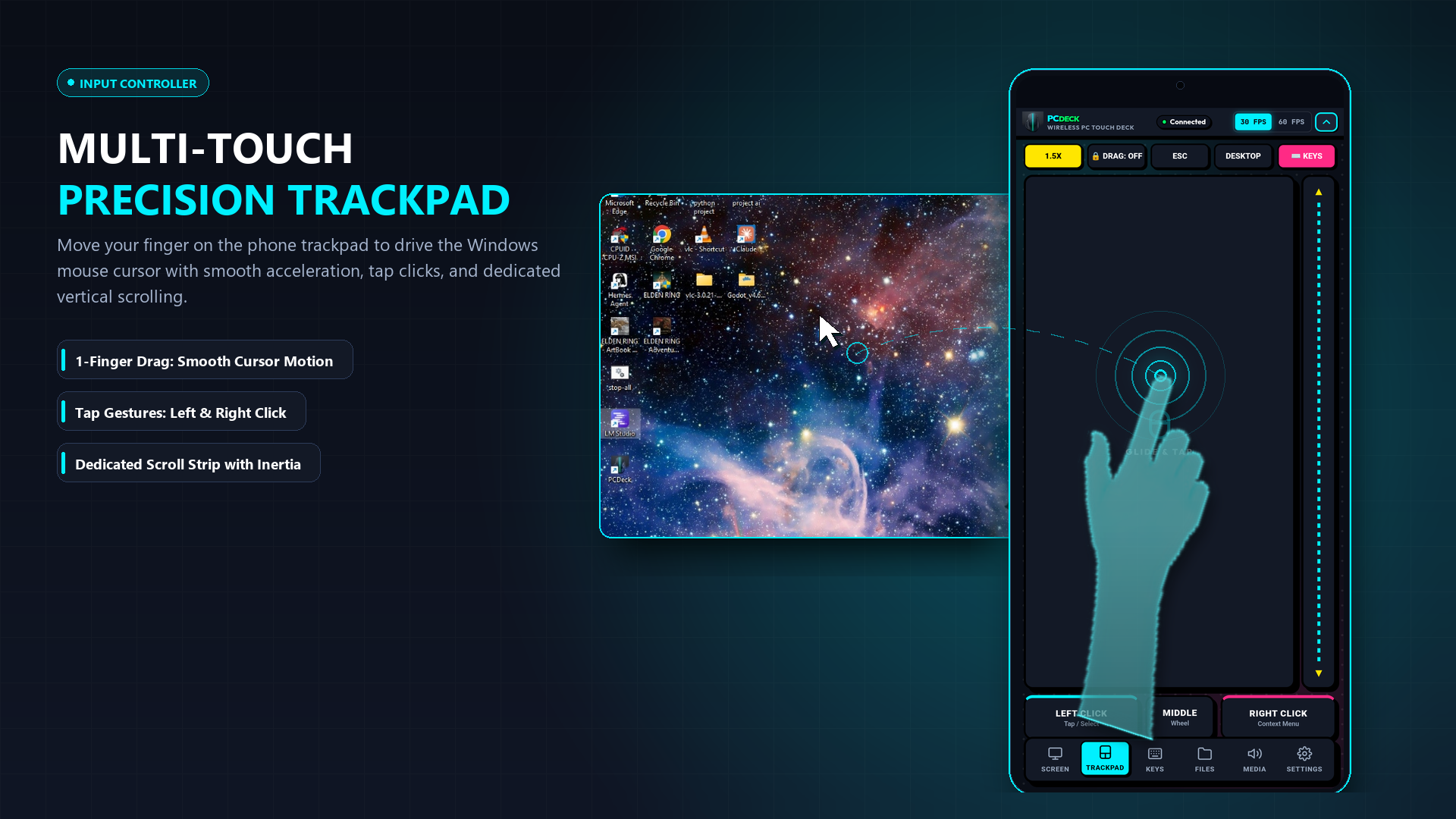
Figure 2: Touch trackpad surface steering the mouse pointer on Linux desktop.
⚡ Linux & Steam Deck Connection Checklist
- Same Local Network: Connect your phone to the exact same Wi-Fi router or hotspot as your Linux PC or Steam Deck.
- Firewall (UFW / firewalld): If connections time out, permit port 8000:
sudo ufw allow 8000/tcp. - 100% Offline & Private: All input deltas stay strictly within your local subnet with zero cloud relay.
Steam Deck in Desktop Mode: The Ultimate Couch Companion
When you switch your Valve Steam Deck to Desktop Mode to install emulators with EmuDeck, configure ModOrganizer, or browse in Firefox, navigating with the built-in thumbsticks and tiny trackpads is cramped and slow. Plugging in physical mice and keyboards requires a bulky USB-C dock or Bluetooth pairing that often disconnects.
Running PCDeck gives you a full-sized multi-touch trackpad and responsive keyboard on your smartphone screen right from your couch. You can tap to left click, two-finger tap to right click, smoothly scroll long web pages, and paste terminal commands into Konsole with zero latency over local Wi-Fi. No hardware adapters, dongles, or docking stations needed.
Ubuntu 24.04 LTS & Modern Wayland Compositors
Ubuntu 24.04 LTS (Noble Numbat), Fedora 40+, and modern Arch Linux installations run Wayland by default under GNOME 46 or KDE Plasma 6. Legacy remote control tools rely on X11 xdotool or XTest, which fail or introduce severe input latency under Wayland security boundaries.
PCDeck avoids this limitation by interfacing directly with the Linux kernel's uinput subsystem (/dev/uinput). Touch events received from your phone browser generate kernel-level evdev mouse and keyboard events that Wayland compositors recognize natively without requiring root permissions or Xwayland emulation.
Headless Raspberry Pi & Linux Home Server (systemd Autostart)
If you run a headless home server, home lab, or media center on a Raspberry Pi 4/5 or Ubuntu Server, PCDeck acts as an instant emergency monitor viewer and touch mouse whenever you need to check on services without connecting an HDMI monitor.
To configure PCDeck to start automatically whenever your Linux machine boots, enable it as a lightweight systemd user service:
systemctl --user enable --now pcdeck
Once active, bookmark http://[server-ip]:8000 in your smartphone browser for instant local LAN access anytime.
Firewall Note for Linux Users
If you have ufw or firewalld enabled, ensure port 8000 is permitted for incoming local network connections: sudo ufw allow 8000/tcp.
Linux Remote Control FAQ
How do I control a Steam Deck in Desktop Mode from my phone?
Switch your Steam Deck to Desktop Mode (press Steam button → Power → Switch to Desktop). Open Konsole, paste curl -sSL https://pcdeck.vercel.app/install.sh | bash, and press Enter. A pairing QR code will appear on screen. Scan it with your phone's camera, and your phone will instantly become a wireless trackpad and keyboard for your Steam Deck with zero app installs.
Does PCDeck support both Wayland and X11 on Linux?
Yes. PCDeck detects whether your session is running under X11 or Wayland (GNOME 40+, KDE Plasma 6, Sway, Hyprland) and interfaces with Linux uinput and synthetic input layers so cursor motion, clicks, and typing work seamlessly on any modern desktop environment.
Does PCDeck work on Ubuntu 24.04 LTS with Wayland?
Yes. PCDeck interfaces directly with the Linux kernel uinput subsystem (/dev/uinput), generating virtual mouse and keyboard events recognized natively by GNOME 46 on Ubuntu 24.04 LTS, KDE Plasma 6, Sway, and Hyprland without Xwayland overhead.
Can I control Linux from an iPhone or iPad without installing an app?
Yes. PCDeck runs an instant HTTP Web Remote on port 8000. Open Safari on iPhone or iPad, scan the pairing QR code displayed in your Linux terminal, and control your mouse pointer, scrolling, and keyboard directly from the browser with zero App Store downloads via Web Remote.
How do I allow PCDeck through the Linux firewall?
If connections time out, open port 8000 for your local subnet: on Ubuntu/Debian use sudo ufw allow 8000/tcp; on Fedora/CentOS use sudo firewall-cmd --add-port=8000/tcp --permanent && sudo firewall-cmd --reload.
Can I control a headless Ubuntu or Raspberry Pi home server without a monitor?
Yes. Start PCDeck as a background service or systemd user service. As long as your Raspberry Pi or headless machine shares the same local network, open http://[server-ip]:8000 in your phone browser to send input or view screen frames.
Get PCDeck for Linux — Free Local Remote Control
Control Linux and Windows PCs from your smartphone or browser over local Wi-Fi with zero telemetry.
Ubuntu · Debian · Fedora · Arch · SteamOS · Raspberry Pi · 100% Offline LAN